Single Customer View: Answer Any Blinds Customer Call
Quote, payment, install date and history on one record.
Sign Up
Start your 7-day free trial
One Screen Per Customer
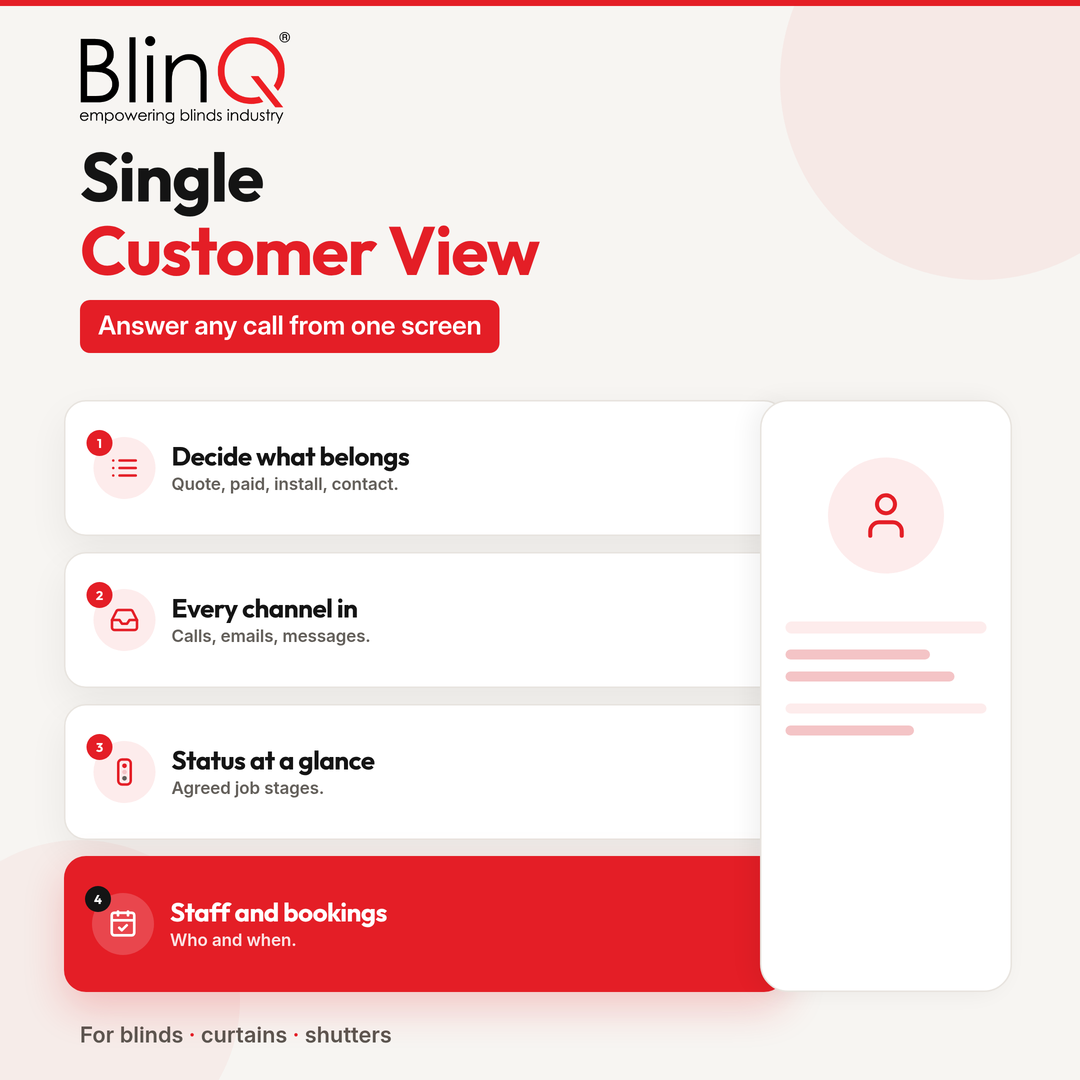
A single customer view means everything about one customer, from the first enquiry to the final fit, sits on one screen. Without it, a simple call asking when the blinds will be installed sends the office through emails, spreadsheets and sticky notes while the customer waits on hold. Here is how to build one without adding extra admin for your team.
DECIDE WHAT BELONGS ON THE RECORD
List the questions customers ask most often: where the quote is up to, what they have paid, when the install is and who they last spoke to. Everything needed to answer them should live on the customer's record.
In BlinQ: the centralised story tracks the journey from initial quote to job completion, including staff notes, email correspondence, purchase orders and deposits.
BUILD A SINGLE CUSTOMER VIEW FROM EVERY CHANNEL
Calls, emails and messages should all add to the same record, or the view is only half complete. Make logging a call note part of hanging up.
In BlinQ: contact management covers email, telephone, social media, web form and website live chat, and mailbox auto connect shows incoming emails in the customer's story.
SHOW STATUS AT A GLANCE
Staff should see where a job is without reading the whole history. Use a short, agreed set of job statuses and keep them current every day. A status that is a week out of date is worse than none, because staff will trust it.
In BlinQ: the visual job dashboard shows statuses such as Approved, On Hold, Check Measurement, Ready to Fit, Fitted and Completed, and you can see when a customer has opened their quote.
LINK STAFF AND APPOINTMENTS
The record should show who is handling the job and when the next visit is booked, so any team member can answer confidently.
In BlinQ: view the staff assigned on the customer's record, and book appointments into connected Google or Office 365 calendars.
Test it this week: pick a recent customer and time how long it takes to answer their last question. See pricing:
https://www.blinq.com.au/pricing
Or book a demonstration:
https://calendly.com/blinq/team
Single customer view
One record per customer
Answer customer calls
Quote and deposit status
Customer story
Emails on the record
Job status at a glance
Staff assigned to the job
Appointments on the record
Get Started
Workflow automation software for retailers and manufacturers of blinds, shutters & curtains.