How to Ask for Google Reviews in a Blinds Business
Happy customers help the next one choose you.
Sign Up
Start your 7-day free trial
Turn Every Fit Into a Review
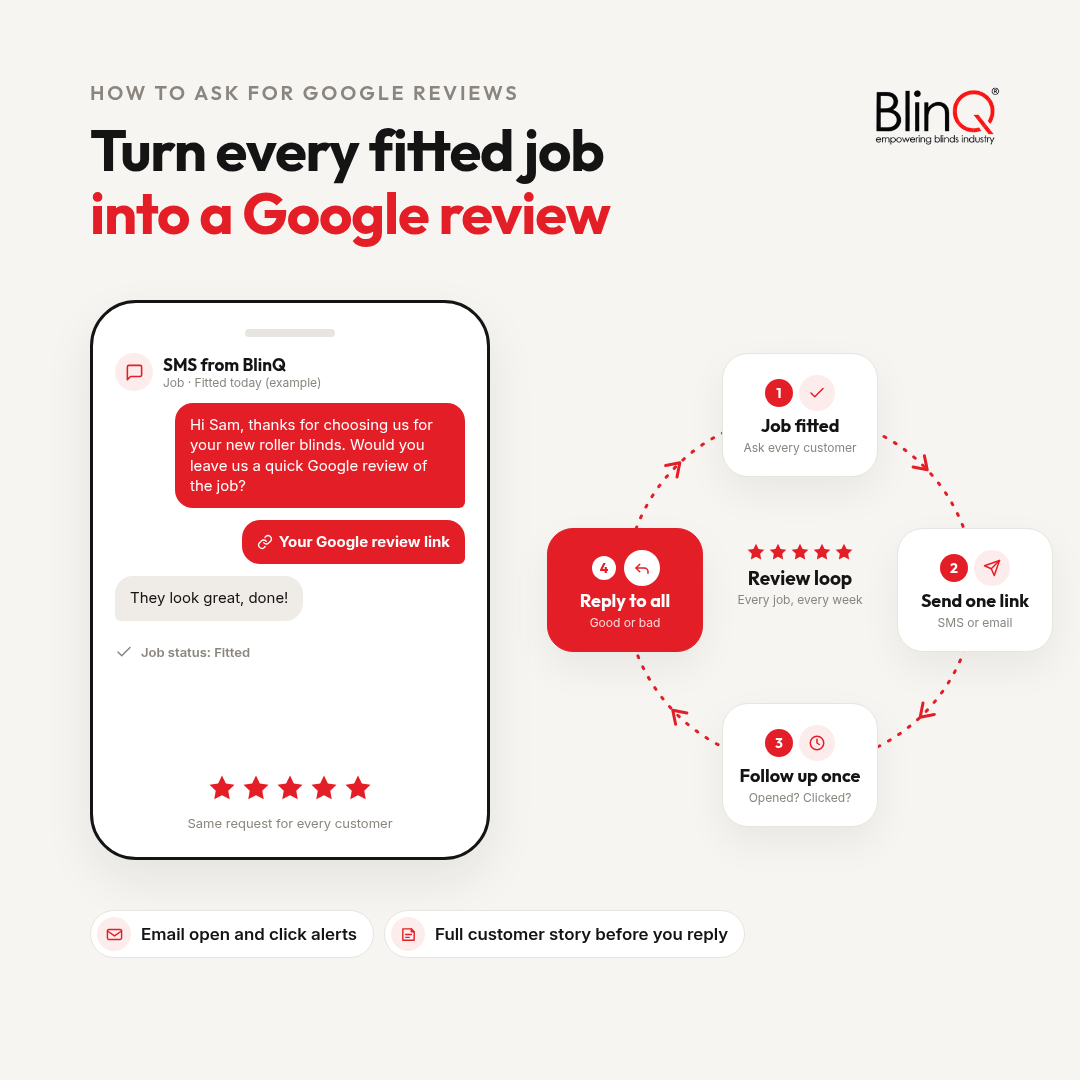
How to ask for Google reviews is something most blinds businesses only think about after a quiet month. Yet customers who are happy with their new blinds are usually glad to help, if you ask at the right moment and make it easy. Here is a simple process for building reviews, and how BlinQ helps you run it.
ASK FOR GOOGLE REVIEWS WHEN THE JOB IS FITTED
The best time to ask is straight after a smooth installation, while the customer is enjoying the result. Ask every customer, not only the ones you expect to be happy. Google's review policies do not allow you to offer incentives or to ask only satisfied customers, so make the request routine for every job.
In BlinQ: the job tracking dashboard shows each job as it moves to Fitted and Completed, so you can see daily which customers are ready for a review request.
SEND A GOOGLE REVIEW REQUEST WITH ONE LINK
Copy your Google review link from your Google Business Profile so customers land straight on the review box. Keep the message short: thank them by name, mention their new blinds and add the link. A text is often quickest to act on, and email suits customers who prefer it.
In BlinQ: send SMS messages to customers from within BlinQ, or email them from the customer's record, and every email is kept in the customer's story.
FOLLOW UP ONCE, THEN LET IT GO
If no review appears after a few days, one polite reminder is enough. After that, stop. Pushing harder rarely produces a review and can turn a happy customer into an annoyed one.
In BlinQ: real-time email tracking shows whether the customer opened your email and clicked through, so you know whether a reminder is worth sending.
HOW TO RESPOND TO NEGATIVE REVIEWS
Reply to every review, good or bad. For a negative one, check the facts first, then respond calmly and promptly, thank the customer, avoid arguing in public and offer to fix the problem offline.
In BlinQ: the customer's story holds the quote, staff notes, emails, photos and job history, so you can check what happened before you reply, then assign the fix to the right staff member with the drop-down pick list.
Turn every fit into a reason to choose you. See pricing:
https://www.blinq.com.au/pricing
Or book a demonstration:
https://calendly.com/blinq/team
How to ask for Google reviews
Google review request
Google review link
Respond to negative reviews
Fitted jobs ready to ask
SMS from within BlinQ
Email open and click alerts
Customer story history
Hand the fix to staff
Get Started
Workflow automation software for retailers and manufacturers of blinds, shutters & curtains.