How to Create a Purchase Order for Blinds Suppliers
Order exactly what the customer approved, once.
Sign Up
Start your 7-day free trial
Supplier Orders Done Right
Knowing how to create a purchase order properly saves a blinds business from an expensive mistake: ordering something different from what the customer approved. When an order is re-typed from the quote into an email or a supplier's form, a width, a colour or a control side can change on the way. Here is the method for every supplier purchase order, and how BlinQ handles each step.
PURCHASE ORDER VS INVOICE
A purchase order is the document you send your supplier to order the goods. The supplier's invoice is their bill for what they supplied, and your quote is the price you gave your customer. Keep all three linked to the same job, so each one can be checked against the others.
In BlinQ: purchase orders are raised through the system and allocated directly to the job, alongside staff notes, emails and deposits in the customer's story.
HOW TO CREATE A PURCHASE ORDER FROM THE APPROVED QUOTE
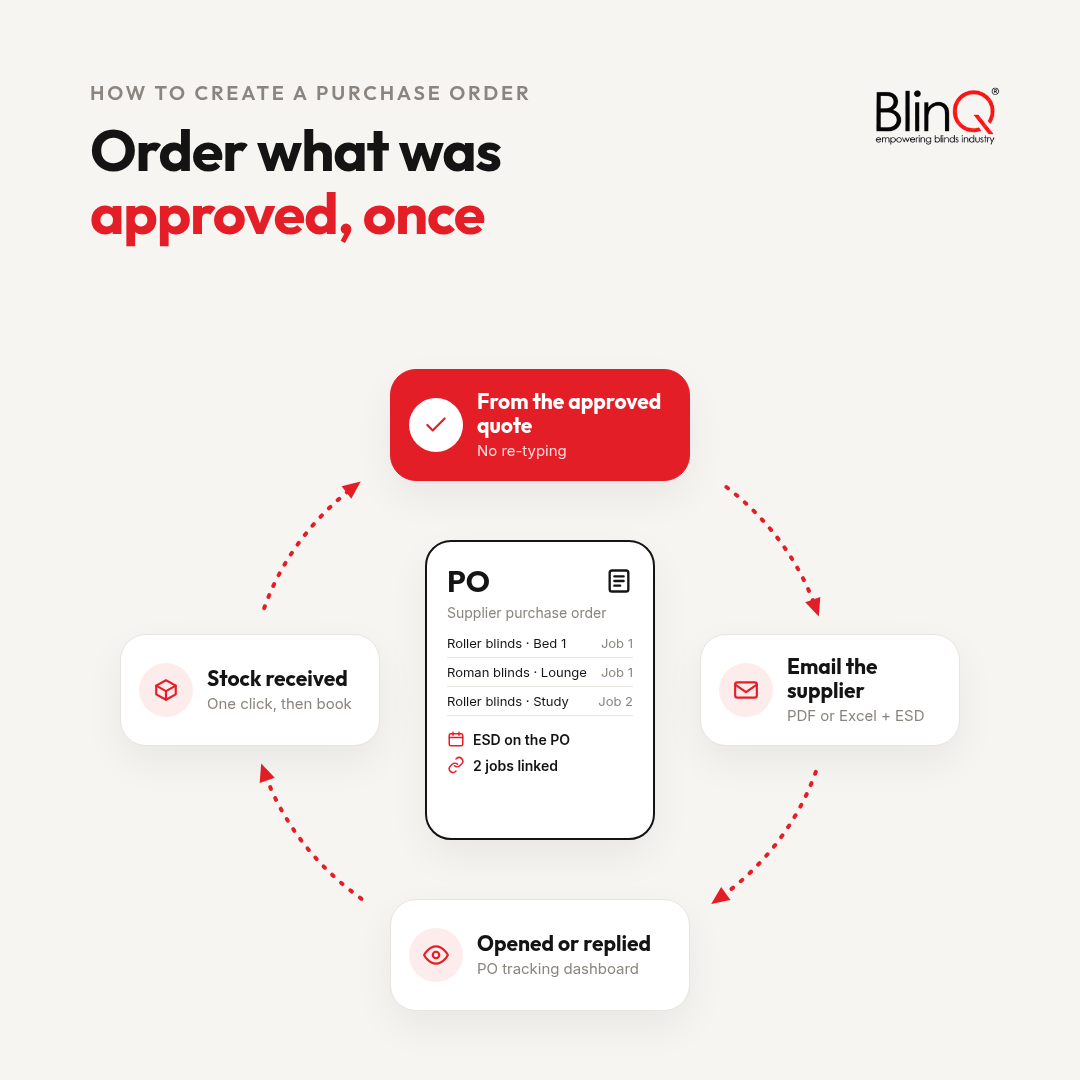
Start from the approved quote, not from memory. Each line needs the product, fabric and colour, width and drop, fit type, control side and any extras, plus your job reference so the supplier's paperwork matches back.
In BlinQ: raise a PO directly from an approved quote, then email it to the supplier with a PDF or Excel file attached and an estimated arrival date.
COMBINE JOBS FOR ONE SUPPLIER
If several jobs this week use the same supplier, one purchase order can cover them and help avoid extra delivery charges. Keep each line tagged to its own job.
In BlinQ: raise a purchase order to a supplier and link as many jobs as you need. A history of every PO raised for that supplier is kept.
TRACK IT UNTIL IT ARRIVES
Purchase order tracking means checking that the supplier opened the order, confirmed the arrival date and delivered what you ordered, before you book the install.
In BlinQ: see when a PO email is opened or replied to, follow estimated arrival dates on the PO tracking dashboard, update received stock with a single click, then schedule the installer.
Try it on your next quote. See pricing:
https://www.blinq.com.au/pricing
Or book a demonstration:
https://calendly.com/blinq/team
How to create a purchase order
Supplier purchase order
Purchase order vs invoice
PO from approved quote
Estimated arrival date
Link jobs to one PO
PO tracking dashboard
Received stock
Supplier PO history
Get Started
Workflow automation software for retailers and manufacturers of blinds, shutters & curtains.